
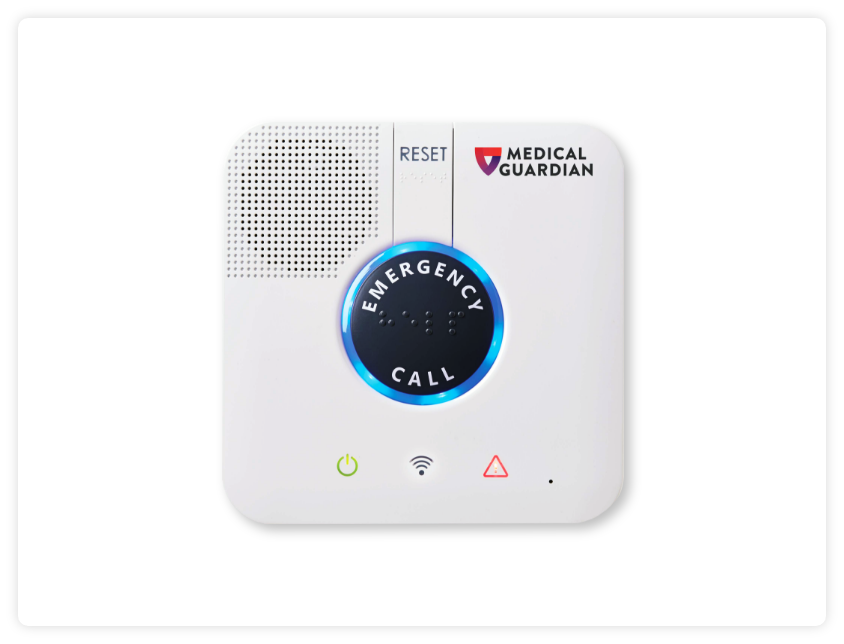
MGHome LTE
Find Solutions
Set Up & Installation
Light Indicators
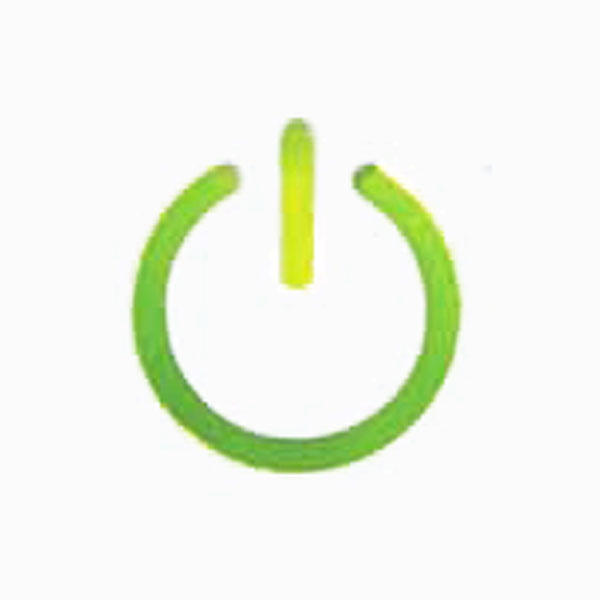
Power Light
- Solid green – Unit is Connected to a Power Source.
- Blinking green – Unit is running on backup battery.
- Off – No power.
Communication Light
- Blinking green – Unit is trying to stablish a connection. (You will need to wait until the light is steady to complete a test or reach the monitoring center.)
- Orange – Active conversation.
- Red – No connection/Improperly connected.

Trouble Light
- Solid red – Malfunctioning button.
- Flashing red – Low battery on button.
Green
- Solid Green – Unit is Properly Connected to AT&T 4G cell network
Reset button
- Orange – On the emergency call button or wearable button has been pressed.
Buttons
Emergency Button
- ON (steady blue)- Normal device behavior.
- Red- Button pressed
- Pairing Mode: Blue LED
- Circular Run/Flashing – Pairing Mode initiated
- Blinks Three Times – Pairing Succeeded
Reset Button
The Reset Button is used to complete a soft reset of the base station.
- Press and hold the reset button to turn the blue LED light off.
Pairing Buttons
How to pair a button with your device:
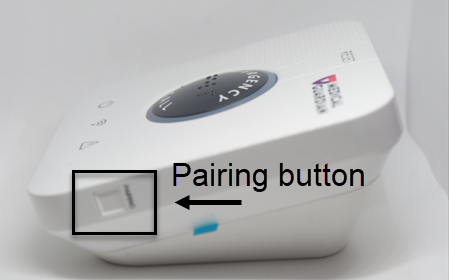
- Gather any/all buttons to be paired.
- Press and hold the pairing button on the right-hand side of the base station until you hear two sets of beeps and then let go.
- The ring light around the Emergency Call button on will begin to illuminate blue.
- Once the ring light has illuminated, please step back at least five (5) feet from the base station with your new button in-hand. Then, firmly press and hold your button for six (6) seconds, and release.
- When your wearable button has successfully paired, the base station will announce, “Pairing successful!”
- Now that pairing has completed successfully, please make a test call from your wearable help button.
Note: all buttons that arrive with the base will not need to be paired prior to testing.
Fall Detection
Testing Your Device
FAQs
How do I power on and power off my device?
To power on the MGHome LTE:
- Simply place the power adaptor into a wall outlet not controlled by a light switch.
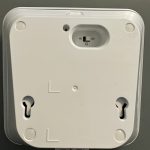
- Turn the device on using the on/off switch located on the bottom of the device
- After a few seconds, the unit will announce “Control Panel On” and “Attention: Cellular strength is X percent” before the Communication Light goes to solid green
- Once the power and connection lights are steady green the device is connected to the network and ready to test.
To power off the MGHome LTE:
- Use the switch on the bottom of the device. Turn the switch to the “off” position. After a few seconds, all the lights will go out and the device will power down.
Can I move this device to a new location?
Yes, this device can be moved to a new location anywhere in the United States where there is a 4G cell network available. The new address will need to be provided (temporary or permanent) by calling the Customer Care department or by logging into the My Guardian Customer Portal. The device should be tested at the new address to ensure it is working properly.
Can metal roofing/siding, trees, airports and other environmental factors have any effect on the device being able to connect?
Yes, metal roofs/siding, concrete buildings (such as a basement) and environmental factors like wooded areas can have an impact on signal strength for a device which affects the device’s ability to connect.
Should extension cords and surge protectors be avoided?
Yes, extension cords and surge protectors can limit the amount of power the device receives resulting in the device not working properly. The device’s power cord needs to be plugged directly into a wall outlet that does not operate on a light switch.
What material is used to make the neck button?
The neck button is made of TPU (Thermoplastic polyurethane plastic) and has a nylon cord/lanyard attached.
What material is used to make the wrist button?
The wrist button is made of TPU (Thermoplastic polyurethane plastic) and has a silicone, latex free band.
Are the buttons water-resistant?
The wearable neck and wrist buttons are waterproof and can be worn in the shower and submerged underwater. The buttons should be towel dried after contact with water. All of our devices are IP67 Certified.
How long does the battery in the button (neck and wrist) last?
The buttons have a battery life of up to 5 years. A red flashing trouble light on the base device indicates a low battery in the button. If you experience a low battery light indicator, please call our Customer Care department. We will be glad to replace it for you at no cost.
How long does the battery in the Fall Detection button last?
The Fall Detection button has a battery life of up to 2 years. A low battery alert will show on the base device as a red flashing trouble light. If you experience a low battery light indicator, please call our Customer Care department. We will be glad to replace it for you at no cost.