
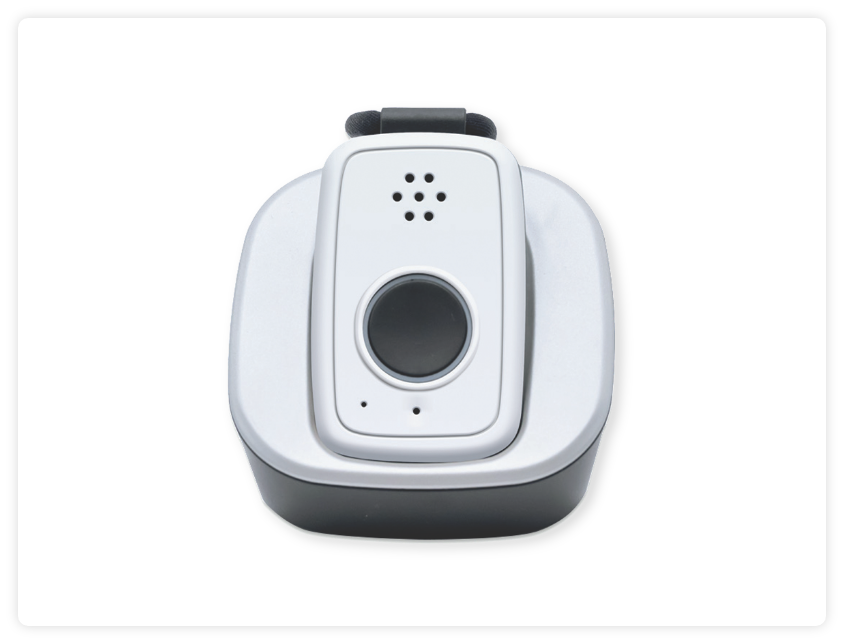
Mobile Guardian MD5
Find Solutions
Set Up & Installation
Parts Identification & Light Indicators
The Mobile Guardian MD5 has one LED indicator around the emergency help button.
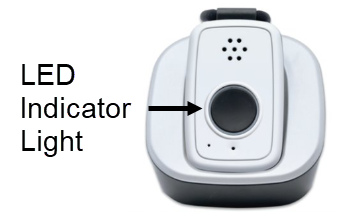
In The Charging Cradle
- Solid Red – Charging.
- Solid Green- Fully charged.
Out Of The Charging Cradle
- No Light – Normal/battery is okay.
- Blinking Red – Low Battery; one hour or less of battery life remaining.
Network Connection
- Blinking Green – No cellular network connection.
- No light – Connected to the cellular network.
Button Press
- Red LED light will illuminate and will stay on until call has ended or after 2 minutes – whichever comes first.
Power Button
- Small flashing green light at the power button indicating the device is powered on.
Cradle
- No LED indicator.
Pairing Buttons
Gather any/all buttons that need to be paired, the mobile device, and the charging cradle. The charging cradle will need to be plugged into power.
- Power down the Mobile Guardian MD5.
- Turn the device back on using the power button.
- If the device is powered on by placing it in the charging cradle, the button pairing will not be successful.
- On the bottom of the cradle, there is a small button to initiate training mode.
- Press and hold until you hear it beep then release. You will need something like a pen in order to press the button.
- The mobile device will then announce, “Device Training Initiated.”
- Press the emergency button on the mobile device once and release it.
- You should hear the announcement “Training Success.”
- Press the emergency button on any pendant you want to train once and release
- You should again hear the announcement “Training Success.”
- Once the training period is over you will hear the announcement “Device Training Completed” and the mobile device will beep once more.
- This should occur after 30 seconds.
- Test the newly paired button.
Fall Detection
Testing Your Device
FAQs
How do I power on and power off my device?
To power on the Mobile Guardian MD5:
- Option 1: Press the On/Off button on the side of the mobile device for approximately 5 seconds. All the lights will turn on and the green LED light will start blinking. This indicated the mobile device was successfully turned on and it will announce “system ready.”
- Option 2: Simply place the mobile device in the charging cradle. All the lights will turn on and the green LED light will start blinking. This indicated the mobile device was successfully turned on and it will announce “system ready.”
To power off the Mobile Guardian MD5:
- Press and hold the On/Off button and hold until the red battery light illuminates. All of the lights will turn off. This indicates your mobile device was successfully turned off.
Can the volume be raised or lowered?
No, the volume is preset by the manufacturer and cannot be adjusted.
Can I move this device to a new location?
Yes, this device can be moved to a new location anywhere in the United States where there is a 4G cell network available. The new address will need to be provided (temporary or permanent) by calling the Customer Care department or by logging into the MyGuardian Member Portal. The device should be tested at the new address to ensure it is working properly.
Does this device have GPS capabilities?
Yes, this device has GPS capabilities nationwide where there is an AT&T 4G network available. In the event of a button press and EMS is dispatched, the GPS location will be provided.
Should extension cords and surge protectors be avoided?
Yes, extension cords and surge protectors can limit the amount of power the device receives resulting in the device not working properly. The charging cradle needs to be plugged directly into a wall outlet that does not operate on a light switch.
Is the mobile device water-resistant?
The portable device is water-resistant and can be splashed with water but not submerged underwater. The mobile device needs to be towel dried after contact with water.
Are the wearable buttons water-resistant?
The wearable buttons are waterproof and can be submerged in water. The buttons need to be towel dried after contact with water. The buttons are IP67 Certified.
How long is battery life of the neck button and wrist button?
The battery life of the neck button and wrist button will last up to 5 years. An amber light will flash every two minutes to indicate a low battery. If you experience a low battery alert, please call our Customer Care department. We will be glad to replace the button for you at no charge.
How long is battery life of the fall detection button?
The battery life of the fall detection button will last up to 12 months.
How long can the device be kept in the charging cradle?
We recommend taking the device out of the cradle at least once every 24 hours. This is a mobile device and is intended to be carried around.
How can I carry the mobile device around with me?
The mobile device comes with a detachable lanyard and belt clip. If you choose to wear the neck button or the wrist button, you will need to be within 350 ft of the mobile device for the button press to connect to the mobile device.
Can metal roofing/siding, trees, airports and other environmental factors have any effect on the device being able to connect?
Yes, metal roofs/siding, concrete buildings (such as a basement), and environmental factors like wooded areas can have an impact on signal strength for a device which affects the device’s ability to connect.